
Canvas navigation
Pan and zoom every canvas in Integraph — the 2D editors, the ACS analysis viewers, and the 3D interaction surface — with a mouse, a trackpad, or touch.
Overview
Every canvas in Integraph responds to the same navigation controls. That covers more than the drawing editors:
| Surface | Where it lives |
|---|---|
| Cross-Section editor | ACS (Advanced Concrete Section) |
| Section editor | GCS (General Cross Section) |
| Geometry canvas and buckling-shape preview | LGS (Light Gauge Steel Designer) |
| Fire Heatmap | ACS, Fire analysis |
| Stress Map | ACS, Analysis |
| 3D interaction surface | ACS, Interaction |
The first five are 2D canvases and behave identically. The 3D interaction surface adds orbiting — you are moving a camera around a solid rather than sliding a drawing — so its left button rotates instead of pans. Everything else matches.
Mouse and trackpad
| Action | 2D canvases | 3D interaction surface |
|---|---|---|
| Zoom | Scroll wheel, toward the pointer | Scroll wheel, camera in and out |
| Pan | Middle-click and drag | Middle-click and drag |
| Pan | Ctrl (⌘ on macOS) + left-drag | Ctrl (⌘ on macOS) + left-drag |
| Pan | Left-drag on empty background | — |
| Rotate | — | Left-drag |
| Tool action | Left-drag on an object | — |
| Right button | Context menu only, never moves the view | Unused |
Middle-drag is the primary pan gesture, matching the convention in AutoCAD, Revit and Rhino. If your mouse has a clickable scroll wheel, press it and drag.
Ctrl (or ⌘) + left-drag is the trackpad equivalent. Laptop trackpads have no middle button, so this is the gesture to reach for when you are working without a mouse. It works on every surface.
Left-drag on empty background pans the 2D canvases, but only while the Select tool is active. In a drawing mode a left-drag is your drawing gesture, so it is not also a pan — switch to Select, or use middle-drag or Ctrl + left-drag, which pan in every mode. The Fire Heatmap and Stress Map have no drawing tools, so left-drag always pans there.
The right mouse button never moves the view. It is reserved for context menus — in the ACS Cross-Section editor, for example, right-clicking a bar opens the bar menu. This is deliberate: a viewport gesture on the right button would compete with those menus.
One difference on the 3D surface
On the 3D interaction surface, Shift + left-drag also pans. This comes from the underlying 3D camera library and cannot be switched off, so it is available there and nowhere else. On the 2D canvases Shift is a drawing key — it constrains a GCS line to horizontal or vertical, snaps an LGS strip to 45° increments, and adds to the selection in ACS — which is why panning is not layered on top of it.
If you want one gesture to remember across every surface, use Ctrl / ⌘ + left-drag.
Touch controls
On a touchscreen — an iPad, a Surface, or any touch-enabled laptop — the canvas responds to multi-finger gestures. These work the same way on every canvas in the platform, including the 3D interaction surface.
| Fingers | 2D canvases | 3D interaction surface |
|---|---|---|
| One | The current tool’s action, or pan when the Select tool is active | Rotate |
| Two | Pinch to zoom and drag to pan, at the same time | Pinch to move in and out and drag to pan |
| Three | Pan | Pan |
Two-finger zoom is anchored to the midpoint between your fingers, so the part of the section you are pinching stays under them. Because zoom and pan run together, you can reframe the view in a single continuous gesture rather than alternating between the two.
Three-finger pan on a laptop trackpad
Three-finger pan works on touchscreens only. On a laptop trackpad, macOS assigns the three-finger swipe to Mission Control and Windows Precision touchpads assign it to Task View, so the operating system consumes the gesture before the browser ever sees it. This is expected behaviour, not a fault in the canvas.
On a trackpad, use Ctrl or ⌘ with a left-drag to pan instead.
Resetting the view
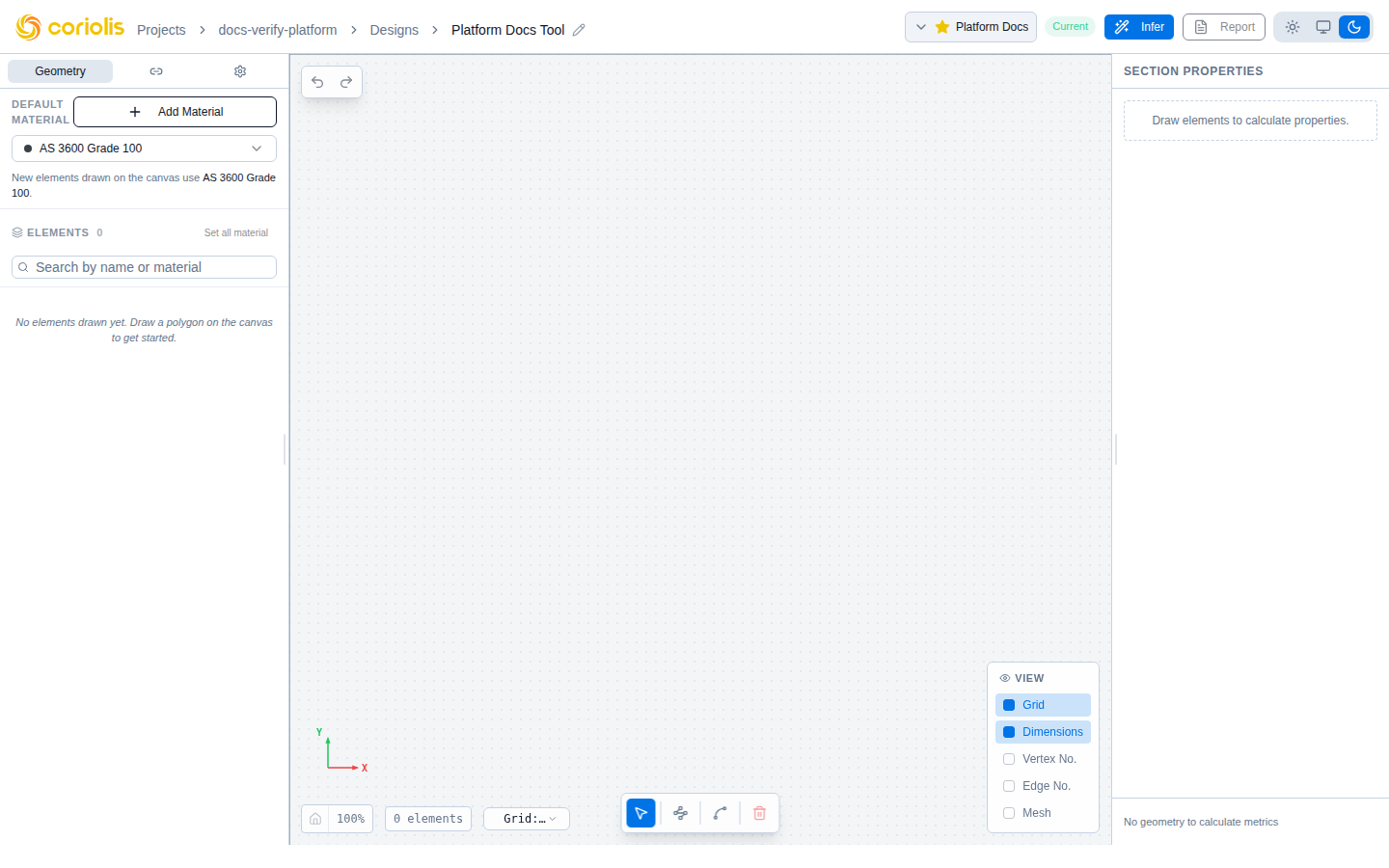
Every canvas has a reset button in the bottom-left corner, marked with a house icon and sitting next to the zoom-level readout. It reframes the view so the whole section is visible again — the fastest way back after zooming into a detail or panning off the edge of the geometry.
On the 3D interaction surface the same house icon returns the camera to its default angle and distance.
There are no keyboard shortcuts for pan, zoom or fit. Use the reset button, the scroll wheel, and the drag gestures above.
Zoom behaviour
Scrolling zooms toward the pointer position, keeping the point under the cursor stationary as the view scales. This makes it easy to zoom into a specific bar, edge or joint without repositioning the section manually.
The current zoom level is shown in the status bar at the bottom-left of the canvas.
On the Fire Heatmap and Stress Map, the temperature or stress image is redrawn at full resolution a moment after you stop zooming. Zooming itself stays instant, and the lines drawn over the image — isotherms, the neutral axis, bar markers and labels — stay sharp at every zoom level because they are drawn as vectors rather than sampled from the image.